


PDF Editor: Edit PDF, Sign PDF
4.1993.00 Reviews
App Specs
- Version
- pdfviewer-6.23.0
- Updated On
- License
- Free
- Downloads
- 10,000,000+
- Developer
- A1Apps-co
- Categories
- Productivity
- Platform
- Android
Screenshots
 Analysis by AppCompare
Have you ever been in a pinch where you needed to edit a PDF on the fly? I know I have, and let me tell you, it can be a lifesaver to have a handy app like PDF Editor: Edit PDF, Sign PDF right on your phone. Whether you’re a student trying to annotate lecture slides or a professional needing to sign a document, this app could be your go-to tool.
Where a phone-based PDF workflow earns its place
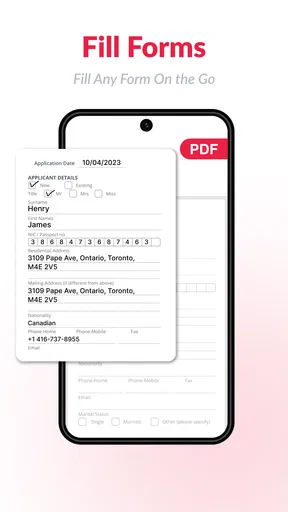
I find this kind of editor most useful when a document needs one small, time-sensitive change rather than a full redesign. Imagine a form arriving as an email attachment while you are away from your computer: you can open it, check the page, add a signature, and prepare a copy to send back without moving the task to a laptop. That is a practical reason to keep a PDF tool on your phone, especially if signing and quick annotations are routine parts of your day.
For study, the value is different. Highlighting a passage or leaving a note beside a point you want to revisit can keep a reading session moving. I would still use a larger screen for lengthy coursework or careful page-by-page review, but the phone is convenient for marking a short handout during a commute or between classes. The trade-off is simple: portability helps with quick actions, while a desktop editor is more comfortable when precision and sustained attention matter.
The app is aimed at people who want several common document jobs together rather than a specialist tool for just one. A person who mostly reads PDFs may not need editing and file-organization controls at all; a built-in reader can be enough. On the other hand, if your regular routine involves comments, signatures, page rearrangement, and occasional conversion, having those tasks in one place may save you from juggling separate utilities.
Making edits without creating a document mess
A useful habit with any mobile PDF editor is to decide what the finished file should be before touching the original. If you are correcting a typo, annotate first only when you want to show the change to somebody; if you need a clean, revised document, use the editing path instead. Keeping a clearly named working copy can also prevent confusion between the version you received and the one you intend to send. That small bit of housekeeping matters more when you are dealing with forms or documents shared by several people.
Splitting and merging have their own practical workflow. If a long packet contains just a few pages you need to share, separating those pages can make the outgoing file easier to handle and reduce the chance of sending unrelated material. Conversely, combining a form with its supporting pages can keep a submission together. I would check the resulting page order before sharing: these operations are useful precisely because they change how a document is assembled, so a quick review avoids an avoidable follow-up.
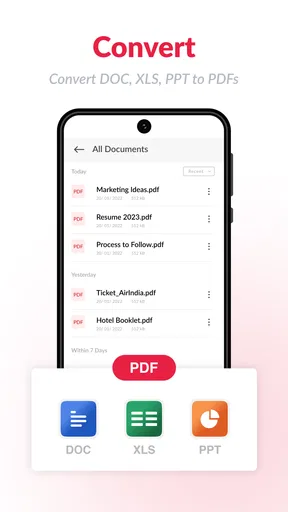
Conversion is best treated as a starting point, not a guarantee that every page will look identical in another format. PDFs can contain complex layouts, tables, and positioned text, and those elements may need attention after conversion. For a simple document that you plan to edit further, converting can be a convenient bridge. For a layout where exact spacing is important, I would compare the converted copy with the original before relying on it.
Worth Reading Before You Choose

EA SPORTS FC Mobile 26 Is a Bigger Football Game, but It Takes Time

Flipboard Shows What News Apps Must Do Beyond the Feed

Switching to Android Auto Means Rethinking Your Driving Routine

Google Calendar Makes a Crowded Week Easier to Manage

Ludo King Makes the Most of the Minutes Between Plans

Baby Panda World Brings Quick Play to Modern Phones, but Its Game Library Feels Busy
Who will appreciate it, and who may want another tool
For everyday use, the free price makes it easy to try as a secondary tool for signing, marking up, and organizing documents on the go. The app is rated for Everyone, and A1 Office Apps develops it. It has a 3.9 average from around 120,000 ratings, with more than 10 million installs, so it has reached a broad audience while still drawing a mixed response. I would treat those figures as context rather than a promise that every workflow will feel equally smooth.
Before settling into a routine, I would also check which actions are available without payment. The app is free to install, but it includes in-app purchases ranging from $1.99 to $51.99 per item. That does not mean every useful task requires a purchase; it does mean I would test the specific tools I expect to use before relying on them for a recurring work process. If you only need to sign a document once in a while, a simple signing option elsewhere may be enough. If you repeatedly need editing, page handling, and conversion, the broader toolkit may justify keeping it installed.
People who work with sensitive or tightly controlled documents should make their decision carefully. I would follow the document owner’s rules and the requirements of the organization handling the file, rather than assuming a general-purpose mobile editor is suitable for every official workflow. For highly precise forms, complex contracts, or extensive revisions, I would choose a larger-screen editor that makes it easier to inspect every detail before sending.
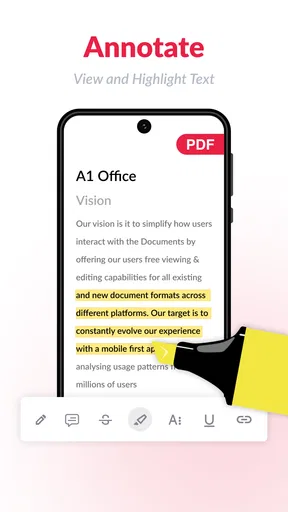
There is also a useful distinction between editing the contents of a PDF and adding marks on top of it. A highlight or comment communicates a review; changing text or an image aims to alter the document itself. If the recipient needs to see your reasoning, markup is clearer. If the source contains a genuine mistake and you are authorized to correct it, direct editing is the more relevant route. Choosing the right kind of change can prevent misunderstandings later.
First Impressions and User Interface
Opening up PDF Editor: Edit PDF, Sign PDF for the first time, I was greeted by a clean, intuitive interface. It’s like the developers really get that nobody wants to fuss around trying to find the right button. Everything is laid out in a way that just makes sense. You've got your main functions front and center, and it feels like they’ve thought of everything you might need right away. It’s almost like the app is saying, "Hey, I got you covered!"
The navigation is straightforward. You can easily upload a file from your device, cloud storage, or even directly from an email attachment. And let’s talk about speed—zipping through documents is smooth, and I didn’t encounter any lag or annoying load times. It’s fast, which is crucial when you’re trying to get things done on the go.
Diving into Features
So, what can you actually do with this app? Quite a lot, actually! From basic edits to more advanced features, this app packs a punch.
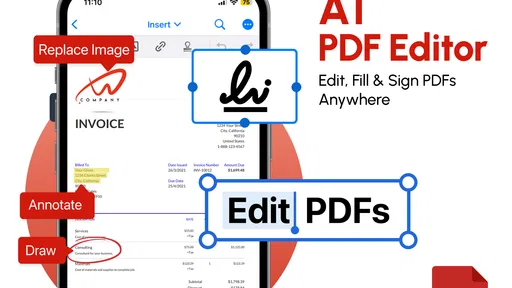
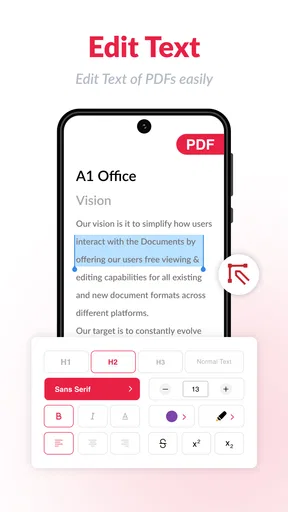
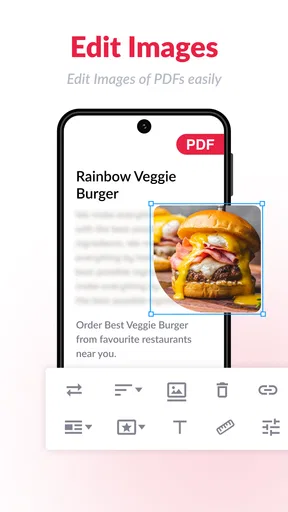
- Edit Text and Images: You can add, delete, or modify text and images within your PDFs. It’s perfect for when you spot that pesky typo or need to update a graphic.
- Annotate and Comment: Highlight, underline, or strike through text. Leave comments or sticky notes for yourself or colleagues. It’s like having a digital notepad built right into your documents.
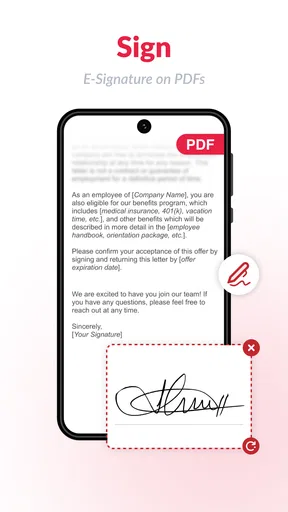
- Sign Documents: Need to sign a contract or form? No problem. The app lets you add your signature with just a few taps. You can even save your signature for future use, which is a real time-saver.
- Merge and Split PDFs: Combine multiple PDFs into one or split a large document into smaller sections. It’s super handy for organizing your files.
One of the features I personally find invaluable is the ability to convert PDFs to other formats like Word or Excel. It’s not something I need every day, but when I do, it’s a game-changer.
Performance and Reliability
Let’s talk about how this app performs in the wild. I’ve been using it regularly for a few weeks now, and it hasn’t let me down. It’s reliable, which is essential because nobody likes unexpected crashes, especially when deadlines are looming. The app’s performance is solid across both Android and iOS platforms, which is a huge plus.
Battery consumption is minimal, which is a relief because I’m often using my phone for other tasks simultaneously. It’s efficient and doesn’t hog resources, which is exactly what you want from a utility app.
A Few Final Thoughts
So, is PDF Editor: Edit PDF, Sign PDF worth a download? Absolutely. It’s a versatile tool that’s incredibly user-friendly and doesn’t skimp on features. Whether you’re editing documents for work, school, or personal use, this app is up to the task.
In a world where digital documents are the norm, having a reliable PDF editor in your pocket is like having a Swiss army knife at your disposal. It’s convenient, powerful, and most importantly, easy to use. If you haven’t already, give it a try and see how it can simplify your digital life.
Speed, stability, and what to expect under pressure
For the sort of short jobs a phone handles well, speed is less about a benchmark and more about how many steps stand between opening a file and finishing the task. The main tools being easy to find helps here: I can get to an edit or signature without treating the app like a desktop workspace squeezed onto a small screen. I would not assume that every very large or complicated file will feel just as immediate, though. Page count, embedded images, and intricate formatting can make any PDF workflow feel heavier, so I save a moment to inspect the result rather than rushing straight to send.
When I have several jobs to do in one sitting, I would work through them in a deliberate order: open and review each source, make the necessary edits, then handle splitting or merging, and finally check the exported copy. This avoids repeatedly reopening the same document and makes mistakes easier to catch. It is especially useful when a task combines a signature with supporting pages, because the final file needs to be both complete and in the right order.
Reliability also includes knowing how to recover from an interruption. Before making substantial changes, I would keep the original file available and avoid treating an open editing session as the only copy. After a signature or conversion, reopen the saved result and confirm that the mark, text, or page arrangement appears as intended. That is a sensible check for any editor, and it matters more on a phone where notifications or switching apps can interrupt a task.
Device fit and choosing between mobile and desktop
The Android app requires version 7.0 or later, and the current version is pdfviewer-6.16.0. That gives Android users a straightforward compatibility check before installing. Because this is a document utility, I would also think about the device’s available space and screen size in practical terms: keeping a few files handy is convenient, but reviewing dense pages or making fine text changes is naturally easier on a larger display. I would use the phone for a quick correction or signature, then move to a computer for a long document that needs careful layout work.
Compared with a basic PDF reader, this app brings editing and document-handling tasks into the same workflow, which is helpful when reading is only the first step. Compared with a full desktop editor, its advantage is convenience rather than a guarantee of deeper control. If your priority is to annotate a handout, sign a routine form, or separate pages while away from a desk, the mobile approach makes sense. If you need elaborate formatting, repeated professional revisions, or meticulous comparison across pages, a desktop tool is likely the more comfortable choice.
There is no reason to install a broad editor just because it offers many buttons. I would choose this one if I expect to use more than one of its jobs—say, signing and merging, or annotating and converting—often enough to make a single mobile workspace worthwhile. If all I need is to read a PDF, or if every document must pass through a specific workplace system, I would stick with the simpler or approved option instead.
A practical performance verdict
PDF Editor: Edit PDF, Sign PDF is best understood as a handy mobile workbench for everyday PDF chores, not as a substitute for every desktop document tool. Its range is the main appeal: editing, notes, signatures, page organization, and conversion cover several common reasons people reach for a PDF app. The easy-to-find controls make quick jobs approachable, while the need to double-check complex conversions and final page order is a fair trade-off for doing that work on a phone.
A1 Office Apps released it on December 2, 2020, and it remains free to install, with optional purchases in the app. Its latest version is pdfviewer-6.16.0, and Android users need version 7.0 or newer. For my purposes, I would try it when I want one flexible tool for occasional document changes and signatures, then judge it by the specific files I handle. If those files are complex, sensitive, or central to a formal work process, I would use a larger-screen or organization-approved alternative and verify every saved copy before sending.
Pros
- User-friendly interface simplifies editing.
- Supports multiple file formats seamlessly.
- Cloud integration enhances accessibility.
- Includes robust security features.
- Offers a wide range of editing tools.
Cons
- Limited features in free version.
- Occasional lag on older devices.
- Requires internet for full functionality.
- Some advanced tools are paywalled.
- Ads can be intrusive at times.
FAQs for PDF Editor: Edit PDF, Sign PDF
What features does PDF Editor: Edit PDF, Sign PDF offer?
PDF Editor: Edit PDF, Sign PDF provides a comprehensive suite of tools for editing PDFs. Users can annotate, highlight, and add text or images. It also supports electronic signatures, allowing users to sign documents directly from their devices. The app includes options for merging, splitting, and organizing PDF pages, making it a versatile tool for both personal and professional use.
Is PDF Editor: Edit PDF, Sign PDF free to use?
The app offers a free version with basic features such as viewing and annotating PDFs. However, more advanced features like electronic signatures, page rearrangement, and certain editing tools may require a subscription or one-time purchase. Users can explore the free version to understand the app’s capabilities before deciding on any purchases.
How secure is PDF Editor: Edit PDF, Sign PDF for handling sensitive documents?
Security is a priority for PDF Editor: Edit PDF, Sign PDF. The app uses encryption to protect documents and ensures that sensitive information remains secure during editing and sharing. Additionally, users can set passwords for their PDFs to restrict access. It's advisable to review the app’s privacy policy for detailed security information.
Can PDF Editor: Edit PDF, Sign PDF integrate with cloud services?
Yes, PDF Editor: Edit PDF, Sign PDF supports integration with popular cloud services like Google Drive, Dropbox, and OneDrive. This feature allows users to easily import and export documents between the app and their cloud storage. It also enables seamless collaboration and access to files on multiple devices, enhancing productivity.
Does PDF Editor: Edit PDF, Sign PDF support multiple languages?
The app is designed with a global audience in mind and supports multiple languages. This feature ensures that users from different regions can navigate and use the app with ease. Language settings can typically be adjusted in the app’s preferences, accommodating a wide range of users and enhancing accessibility.


